CCM Autoblocker
Overview
The Auto blocker tab allows users to configure automatic cookies and script blocking rules that are applied during website scanning and consent validation. It provides centralized controls for managing which scripts should be allowed, blocked, or exempted from autoblocking.
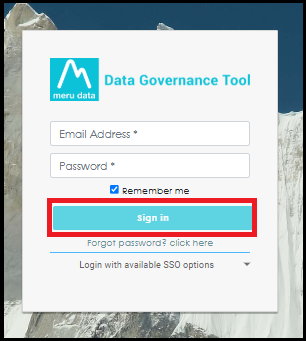
- Login to the Data Governance Tool by entering your credentials.
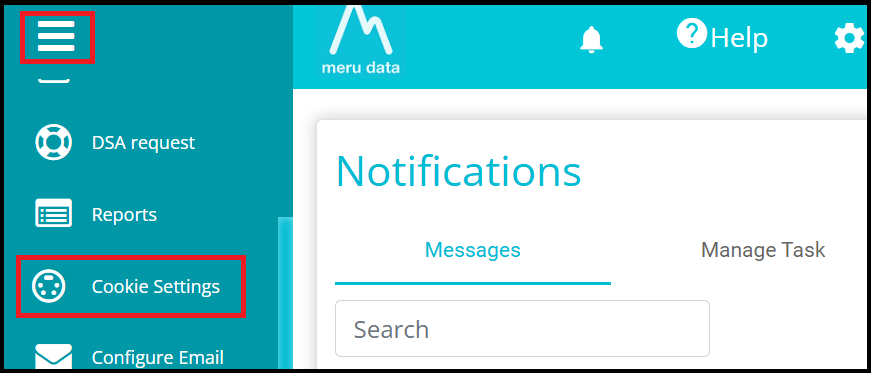
Click on the hamburger menu (three horizontal lines).
Navigate to Cookie Settings from the left-hand menu.
- In the Configurations section, click on any existing configuration.
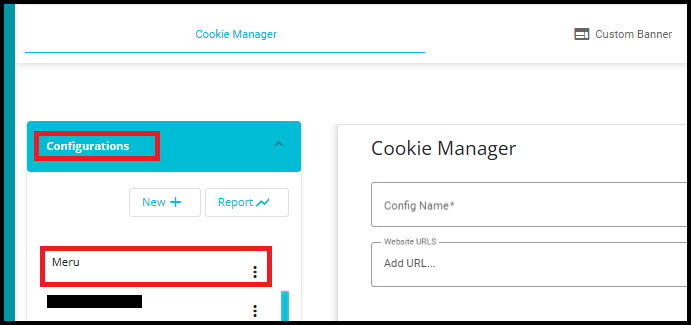
- After selecting a configuration, click the Go To Scan button.

- Alternatively, click the three-dot (More Actions) menu next to the configuration name and select Scan and Autoblock.
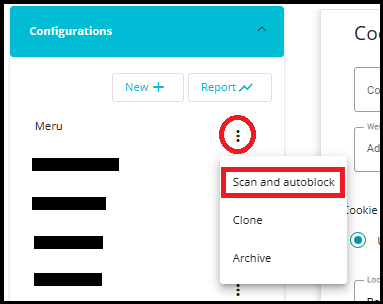
Whether you click Go To Scan or select Scan and Autoblock from the More Actions (three-dot) menu, the system navigates you directly to the Cookie Scanning and Auto Blocking page associated with the selected configuration.
On the Cookie Scanning and Auto Blocking page, click the Auto blocker tab.
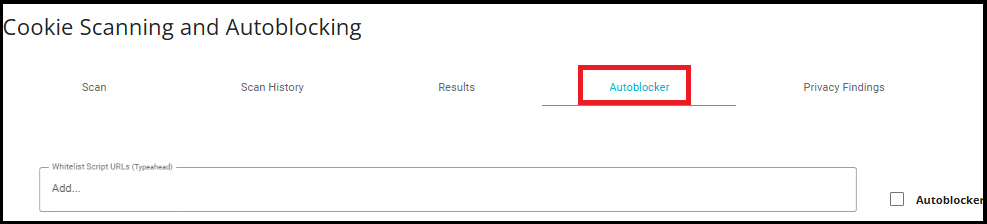
The Whitelist Script URLs field allows users to specify hosts or script URLs that should always be included during cookie collection and analysis.
When a host is added to the whitelist:
Cookies associated with the specified host are collected regardless of any auto blocker rules or filtering conditions.
The host is exempt from blocking logic that might otherwise prevent its cookies from being captured.
This is useful for trusted services, business-critical applications, analytics providers, or other domains that must always be monitored.
Note: Whitelisting a script URL ensures that the specified script is exempt from autoblocking rules and continues to function even when a user selects Reject All or when Global Privacy Control (GPC) signals are applied. This is useful for scripts that support essential business functions, analytics, or internal reporting requirements and should not be blocked.
Example: A company may use an analytics or sales-tracking script to measure website performance or business conversions. By adding that script URL to the whitelist, the script remains active and can continue to operate even when other non-essential scripts are blocked due to user consent choices.

The Blacklist Scripts section allows users to specify script URLs that should be blocked from setting or collecting cookies for a particular cookie category.
Each Rejected Category can have one or more Blacklist Script URLs associated with it. When the auto blocker is active, scripts listed in the blacklist are prevented from executing, and any cookies generated by those scripts are rejected.
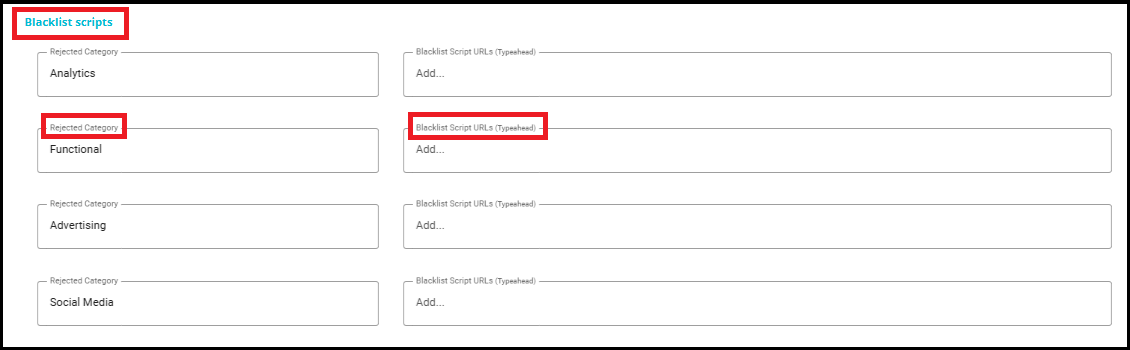
NOTE: If a script URL appears in both the Blacklist Script URLs and Whitelist Script URLs, the Whitelist takes precedence. Whitelist Script URLs ensure that trusted hosts are always included regardless of blocking rules.
Auto blocker Active
- The Auto blocker Active checkbox controls whether autoblocking rules are applied during cookie scanning and collection.
When Enabled
Auto blocker rules are activated.
Cookies and scripts that match configured blacklist conditions are blocked.
Only permitted cookies are collected based on the configured rules.
All hosts listed under Whitelist Script URLs are exempt from blocking and their cookies are always collected.
When Disabled
Auto blocker rules are not enforced.
Scripts and cookies are collected without auto blocker restrictions.
Blacklist configurations are ignored until the feature is enabled again.
Save Button
The Save button stores any changes made within the Auto blocker configuration page.
Use Save after:
Enabling or disabling Auto blocker Active.
Adding or removing Whitelist Script URLs.
Adding or removing Blacklist Script URLs.
Modifying any auto blocker-related settings.

- When the configuration is saved successfully, a confirmation message is displayed at the bottom of the page.
